Downloading a video can be useful when you need an offline copy of your own upload, licensed training material, public-domain footage, or another video whose owner has given you permission. The important first step is not choosing an app. It is confirming that you are allowed to save the file.
This guide explains a practical Mac workflow using VideoGet. It does not cover bypassing digital rights management, paywalls, account controls, or other access restrictions.
Check that you have permission first
Before downloading anything, confirm that at least one of the following applies:
- You created and uploaded the video.
- The copyright owner gave you permission to download it.
- The video is offered under a license that permits downloading and reuse.
- The work is in the public domain in your jurisdiction.
- The platform provides an official download option for your intended use.
Permission to watch a video does not automatically grant permission to download, copy, publish, sell, or redistribute it. Platform terms and local copyright rules can also differ by country. If you are uncertain, use the platform's official offline feature or ask the rights holder.
Prepare your Mac and destination folder
Create a dedicated folder before starting. A simple structure makes downloaded files easier to review and prevents your Downloads folder from becoming a permanent archive.
For example:
- Open Finder.
- Create a folder such as
Authorized Video Downloads. - Add subfolders for the project name, source files, captions, and final exports.
- Check that the drive has enough free space for the selected video quality.
High-resolution video can require much more storage than expected. Keeping the original and an edited export also doubles the space required for that project.
Download an authorized YouTube video with VideoGet
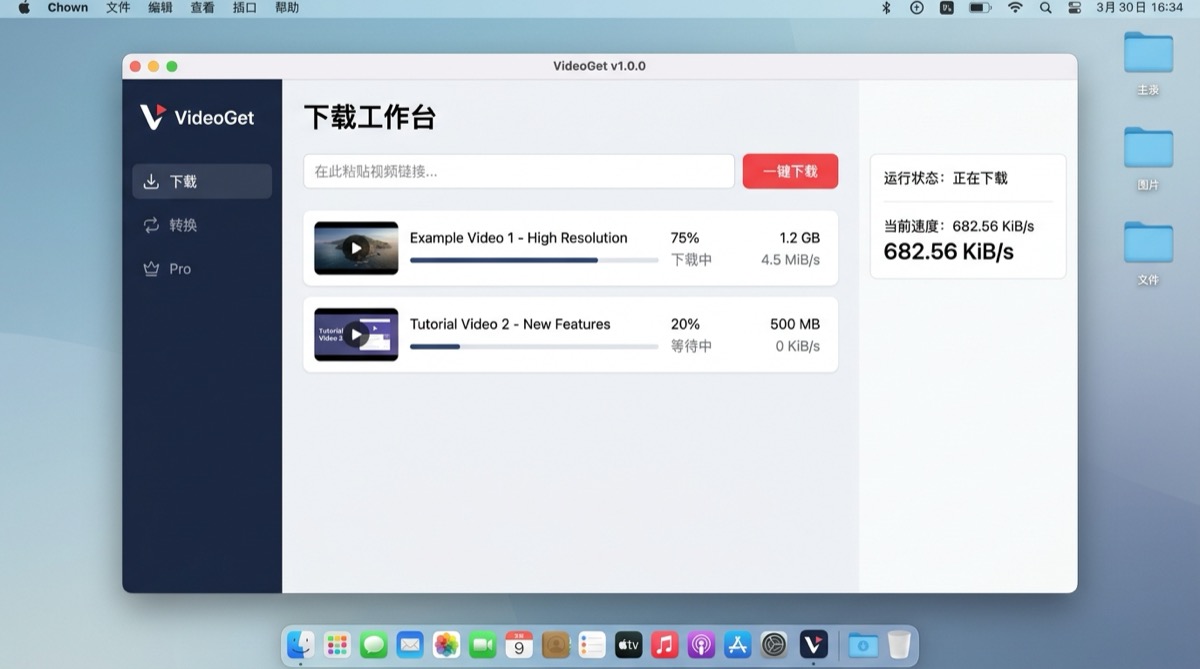
VideoGet provides a focused macOS download workspace. The exact formats available depend on the source and the media formats it exposes.
1. Copy the authorized video URL
Open the video page in your browser and copy its full URL from the address bar. Make sure it is the video you are permitted to save rather than a playlist, advertisement, or unrelated page.
2. Open VideoGet on your Mac
Launch VideoGet and open the download workspace. If the required local download component is not available yet, follow the in-app prompt to install or check it before continuing.
3. Paste the URL and let VideoGet analyze it
Paste the copied URL into the input field. VideoGet analyzes the source and prepares the available download options. Wait until analysis finishes before choosing a format.
4. Review the format and quality
Choose a format that matches your next step:
- Select a compatible MP4 option when you want broad playback support.
- Choose a lower resolution when the file is only for reference or transcription.
- Choose a higher resolution when you have permission and need the additional detail for editing.
- Keep audio-only output for authorized speech, interview, or transcription workflows that do not require video.
Avoid selecting the largest option automatically. The best choice is the smallest file that still meets the needs of your project.
5. Choose the destination folder
Select the project folder you prepared earlier. VideoGet uses a folder you control, making it easier to find the completed file and manage it with your normal Mac backup workflow.
6. Start the download and verify the result
Start the task and keep VideoGet open while it progresses. When the task is complete, open the destination folder and check the file:
- Confirm that the video plays from beginning to end.
- Check that audio and video stay synchronized.
- Verify that the resolution matches the option you selected.
- Rename the file with a clear project-friendly name.
Do not redistribute the result unless the applicable permission or license also allows redistribution.
Add subtitles after downloading
If the authorized video needs captions, keep the downloaded source file unchanged and create a separate working copy. VideoGet can work with local subtitle files and MP4 export workflows.
Use an SRT or VTT file when captions already exist. Check the timing, spelling, speaker names, and line breaks before exporting. Burned-in subtitles are useful when captions must always remain visible, while a soft subtitle track lets compatible players turn captions on or off.
Keeping the untouched source, subtitle file, and final export in separate folders makes later corrections much easier.
Common download problems on Mac
The URL cannot be analyzed
Confirm that the URL opens normally in your browser and points directly to a supported video page. Private, age-restricted, paid, region-limited, encrypted, or account-controlled media may not be available. Do not attempt to bypass those restrictions.
The download stops before completion
Check your internet connection and available disk space. Retry only after confirming the destination folder is still accessible. A Mac can also pause background activity when it sleeps, so keep it awake during a large authorized download.
The downloaded file has no audio
Some sources expose video and audio as separate streams. Use the compatible MP4 option when available, and wait for post-processing to finish before opening the output file.
The file is too large
Return to the available formats and choose a lower resolution. For reference viewing, transcription, or subtitle timing, a smaller file is often sufficient.
Build a repeatable and responsible workflow
A reliable workflow is more valuable than collecting files without context. Save the source URL, rights or license note, download date, and intended project beside each authorized video. Remove temporary files after the project is complete, and do not upload downloaded material to another service unless your permission covers that use.
VideoGet can simplify the technical steps on macOS, but responsibility for the source and intended use always remains with the user.